Start with the permission and camera owner
A black preview or missing camera commonly means the browser does not have permission or another app has claimed the webcam. Check the lock icon near the URL, set Camera to Allow for the site, and reload. Quit video-call software, system camera apps, and other browser tabs using the same device.
Do not repeatedly refresh before checking permission: if the setting remains blocked, each reload produces the same result.
Separate recognition problems from camera problems
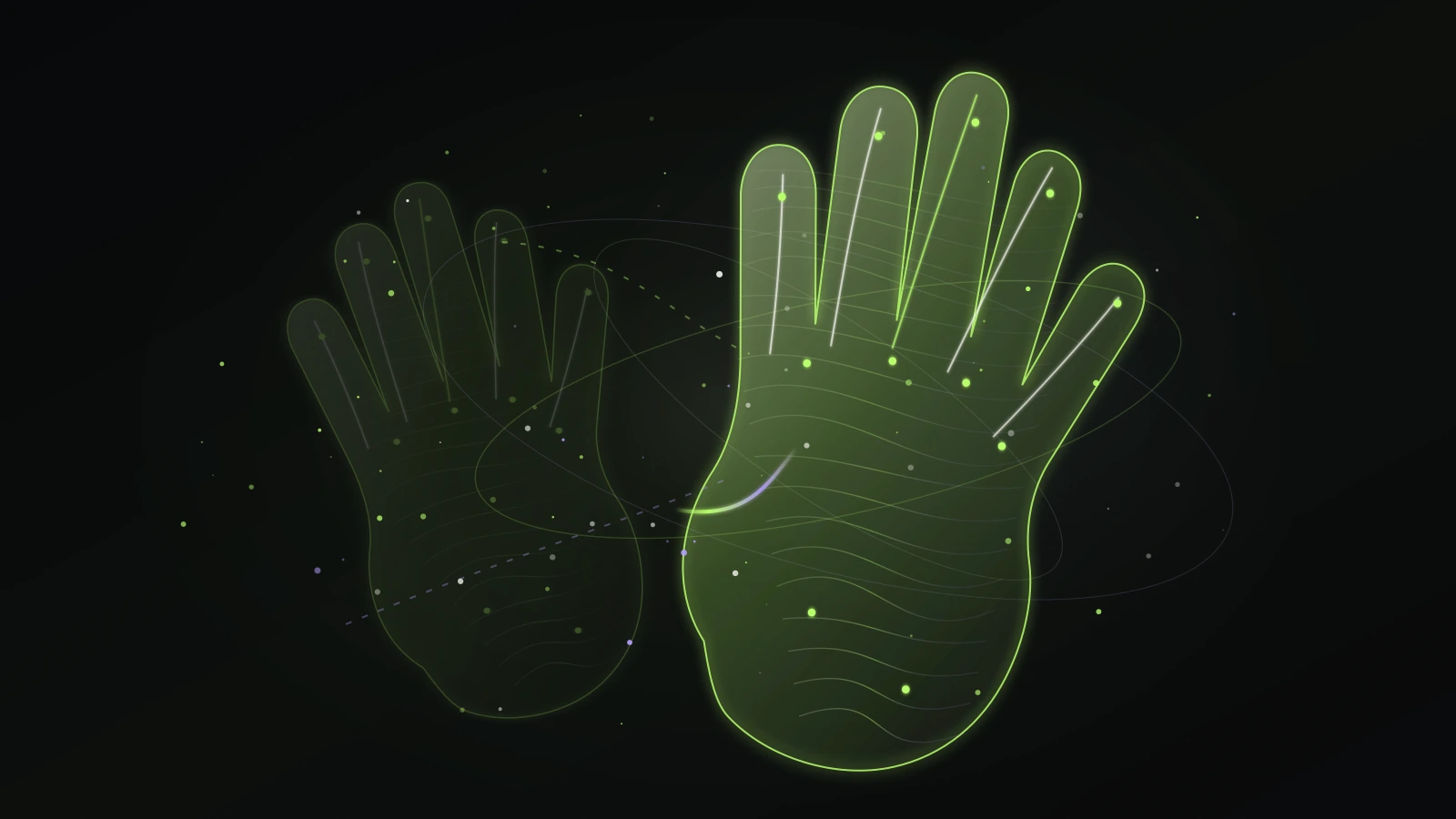
If you can see a camera preview but gestures are not recognized, the device is working and the next focus is visual clarity. Face a light source, use a simpler background, show your palm to the camera, and keep fingers spread. Hold each position briefly so the tracking result can settle.
If the preview itself is black or unavailable, test the camera in a trusted local app or another browser tab after closing conflicting apps. That tells you whether the issue is site permission, browser configuration, or the camera device.
Reduce lag before changing gestures
Hand tracking runs in real time, so a device under heavy load may react late or jump between states. Close resource-heavy tabs, unplug unnecessary capture devices, and avoid a background video call. A current Chrome, Edge, or Safari build generally gives the most reliable browser media support.
Make only one environmental change at a time. For example, fix lighting first, then change camera distance. That makes it easier to learn which change actually helped.
Keep making music with the fallback
Keyboard mode is a practical fallback, not a failure state. It lets you confirm the music engine and practice chord timing while you decide whether to adjust camera permissions or try another device.
Once audio works in keyboard mode, return to hand mode with a simple one-finger gesture before trying faster chord changes.