Virtual instruments are defined by their input and response
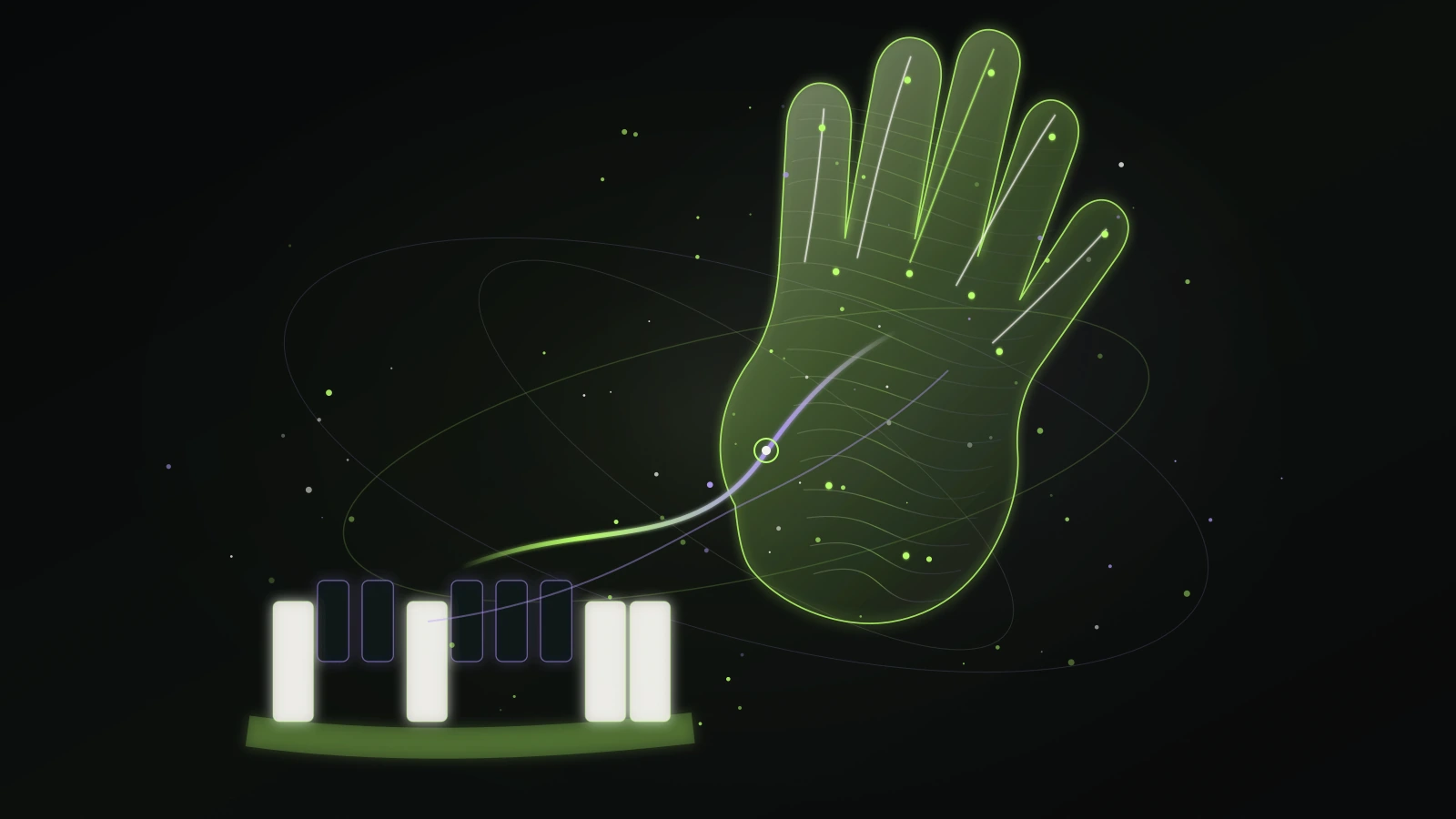
A virtual musical instrument is more than a sound generator on a screen. It needs an input you can learn, a response you can hear, and feedback that helps you understand what changed. A piano-style interface may use on-screen keys. A drum tool may use pads. A gesture instrument can translate an intentional movement into a musical action.
The important question is not whether the instrument looks like a physical object. It is whether the input is clear enough that you can repeat a musical decision. Gesture Synth uses a guided chord system so keyboard actions or simple hand states can become a coherent progression without requiring a traditional instrument technique.
Try the browser instrument →Learn how keyboard input makes music →Learn how hand tracking becomes music →
Choose an input that fits your environment
A regular computer keyboard is familiar, quiet to set up, and useful when you are in a shared space. Pointer and touch controls can work well on different devices. Camera gestures can feel expressive but need lighting, a visible hand, and a deliberate permission decision. External MIDI hardware is another general browser-instrument option, but it is not required by Gesture Synth and should not be assumed to be supported by every tool.
Start with the input that creates the fewest obstacles. If you are evaluating a new instrument, keyboard mode is often the most reliable baseline because it confirms the musical response before camera settings, device position, or room lighting enter the picture.
Use constraints as a way to play more deliberately
A virtual instrument does not need to expose every note, effect, and parameter at once to be creative. A constrained set of chord choices can reduce accidental clashes and help a beginner concentrate on rhythm, repetition, and contrast. The limitation is useful when it is visible and honest about what the tool does.
Gesture Synth uses selected styles and chord states as a performance vocabulary. Treat that vocabulary like a small ensemble: repeat one idea, answer it with another, then create a change in energy. You are not building a full arrangement; you are shaping a playable phrase.
- Choose keyboard mode for your first controlled test.
- Repeat two chord states at a steady pace.
- Add one energy change after the pattern is stable.
- Try hand input only if you want a more physical performance path and the camera setup is ready.
Keep accessibility and privacy in the decision
A good virtual instrument should not make one input method the only path to music. Keyboard support gives people a camera-free option and reduces the impact of lighting, mobility, privacy, or device constraints. Clear visual feedback and readable controls also help players understand the response without relying solely on sound.
If you enable a camera, do it because you want the gesture feature, not because the page made the choice feel mandatory. Browser permissions can be reviewed and revoked later. In Gesture Synth, keyboard mode remains available after you block or revoke camera access.
Allow camera access safely →Read Gesture Synth privacy information →
Turn a first try into a short performance
The most useful first virtual-instrument session has a finish line. Set a small goal: one opening chord, one contrasting change, one increase in energy, and one clear ending. That gives you something to listen back to and makes it easier to improve a single part on the next take.
If the instrument includes responsive visuals, use them as feedback rather than as a distraction. Listen for the change first, then notice whether the visual motion supports it. A simple intentional performance is a stronger foundation than a collection of random control tests.
Understand online synthesizer choices →See how music can become motion →Record a short performance →