A visualizer listens to changing audio information
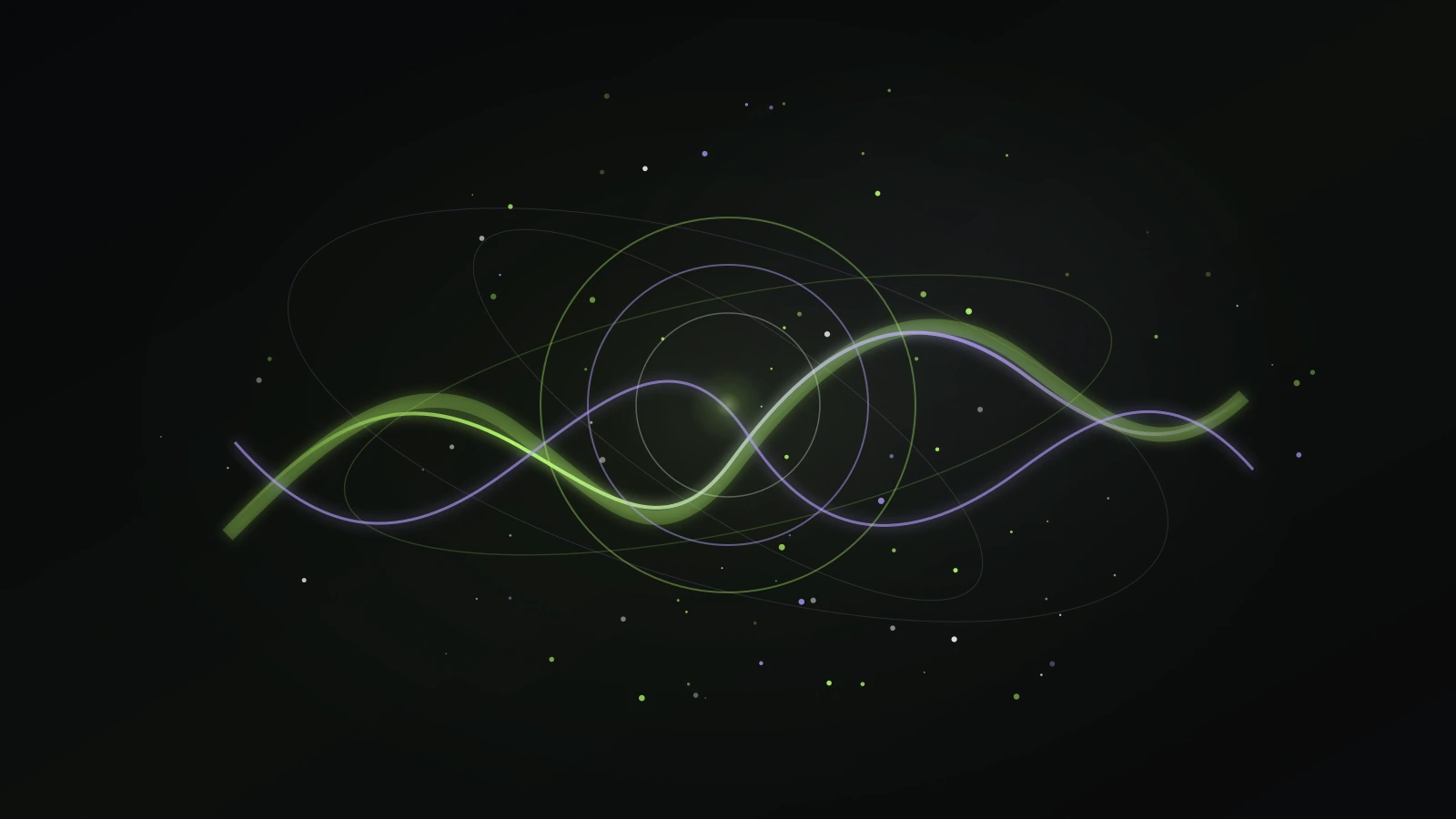
Sound changes over time, and browser audio tools can inspect some of that change as waveform or frequency information. An analyser node is one common Web Audio API building block for this purpose: it can pass sound onward while making time-domain or frequency-domain data available for drawing. A visual layer can translate that data into bars, lines, pulses, particles, or more abstract motion.
The result is not a picture hidden inside the music. It is a visual interpretation designed by the tool. Two visualizers can react to the same audio in very different ways because each chooses different colors, smoothing, shapes, and timing rules.
Learn the browser audio basics →Make a short online music session →Open Gesture Synth →
Match the visualizer to the source you actually have
Before choosing an online music visualizer, ask what it is designed to receive. Some tools analyze an audio file you upload. Some react to a microphone or a system audio route. Some are part of a particular instrument and respond only to that instrument. These are different workflows with different privacy and permission implications.
Gesture Synth belongs in the third group. Its visuals are part of its generated musical performance and respond to the performance state. This guide does not claim that Gesture Synth accepts any uploaded song and turns it into a general-purpose visualizer. If uploaded-track visualization is your goal, choose a tool that explicitly supports that input.
Use visuals to support musical choices, not hide them
Responsive motion can make a performance easier to read. A quieter opening can look less dense, a harmonic change can introduce a new shape, and an energy increase can create a stronger pulse. These visual changes give a player feedback about what the audience may feel in the sound.
They should support the music rather than substitute for it. Begin by listening with the visuals present, then listen again with your attention on timing and chord changes. If the phrase still has a clear start, contrast point, and ending, the visual layer is reinforcing a real performance decision.
- Choose a short chord pattern before thinking about visual effects.
- Keep the opening visually and musically simple.
- Make one intentional change in energy or harmony.
- Leave a beat of space at the end so the final visual motion can settle.
Keep visual performance practical in a browser
Visual effects use device resources alongside audio, camera processing, and the rest of the page. If a performance feels delayed, close heavy tabs and background applications before changing your gestures. Reducing other load is often more useful than moving faster or adding more complex input.
For a camera-based performance, set up lighting and framing before recording. If you only want to test music and visual timing, keyboard mode is a more controlled starting point because it removes the camera from the troubleshooting path.
Use keyboard mode for a stable first test →Set up hand tracking carefully →Fix laggy tracking or camera issues →
Record only after the visual language feels intentional
A recorded visual performance is stronger when motion follows an audible plan. Rehearse one small structure, check the first chord, build once, and end deliberately. Do a short test recording before a longer attempt so you can confirm that the result is usable on the device where you plan to review it.
Avoid filling every second with changes. In both sound and motion, contrast is easier to perceive when there is stable material around it. A simple repeat with one purposeful departure often looks more confident than constant random activity.
Record a browser music video →Explore browser instruments →Browse all Guides →